
How to remix your song in Beat Studio
Start with an MP3 or M4A, up to 10 MB, between 10 seconds and 5 minutes 50 seconds. The Remix input needs a song with singing.
- Open Beat Studio and sign in. In the Create panel, click + Remix and choose your song.
- Check the Lyrics box. Beat Studio attempts to fill in the words from your upload. Correct them before creating. If detection fails, paste the lyrics yourself.
- Write the new sound in Style. Name the genre, groove, instruments and energy you want. Use one of the examples below as a starting point.
- Confirm permission and singing. Tick the two boxes confirming that you own the song or have permission to use it, and that it contains singing.
- Click Create remix. Check the cost shown on the button first. When the track finishes, play it in your Library and check the words, melody and groove.
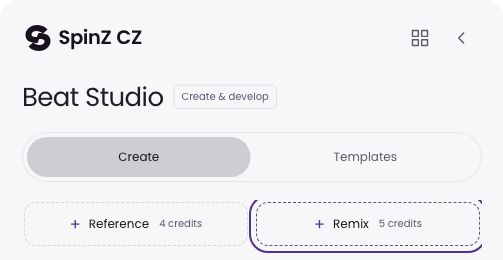
A remix currently uses 5 credits. Membership credits and purchased credit packs use the same balance. The live credit guide and the button in your account show the current cost.
Why does Suno say the audio matches an existing recording?
That message means Suno has stopped that upload after a match check. It does not tell you, by itself, who owns the recording or whether your particular use is authorised.
Creators have reported their own recordings being flagged. Those are user reports, not a measured failure rate or proof that every blocked upload is a mistake.
Suno has not removed audio uploads altogether. Its official upload guide still describes uploading recordings and using features such as Cover and Extend. Its newer Studio 2.0 documentation also supports audio imports. The frustrating case is when the feature exists but the file you want to work with is rejected.

If you want to keep working in Suno, contact Suno support with the exact message and the recording’s origin. Suno’s guidelines provide an appeal route for incorrect enforcement. An appeal is an option, not a guaranteed clearance.
If your next step is simply to hear another arrangement of a song you’re allowed to use, Beat Studio gives you a separate upload-and-remix workflow.
Beat Studio vs Suno: what matters for this job
We make Beat Studio. This comparison covers the upload-and-remix task; it is not a claim that Beat Studio replaces every Suno Studio feature.
| Your decision | Beat Studio | Suno |
|---|---|---|
| Start from an existing recording | Yes. Choose + Remix and upload a song with singing. | Yes. Audio uploads, Cover and Extend are documented; an individual upload can still be blocked. |
| Give it a new musical direction | Check the lyrics and write the new arrangement in Style. | Cover changes the musical treatment; Studio offers a broader editing workspace. |
| Input length | Remix: 10 seconds–5:50; MP3/M4A up to 10 MB. | The Create upload guide lists up to 60 seconds on Basic and 8 minutes on Pro/Premier. These are not Studio timeline limits. |
| Cost and access | 5 credits per remix, quoted before creation. See current costs. | Features depend on the plan. The separate Studio 2.0 workspace requires Premier. |
| Detailed timeline editing | Generate a version, then take further editing into your music software. | Studio 2.0 includes a multitrack timeline, effects, automation and MIDI. |
| Guaranteed acceptance or release rights | No. File acceptance is not rights clearance. | No. Uploads must meet Suno’s rules and rights requirements. |
Checked 8 October 2026. Suno sources: Audio Uploads, Studio 2.0 and Terms. The two services’ credits are different units; their counts are not a cash-price comparison.
Choose Beat Studio when you want a direct route from an uploaded vocal song to a new arrangement. If you want to edit automation, MIDI and individual timeline clips inside Suno, Studio is the broader environment. Choose for the job you actually need to finish.
Tell it what the new version should sound like
In Style, describe the music you want to hear. “Make it better” leaves almost every decision open. A useful brief names the rhythm, instruments and energy.
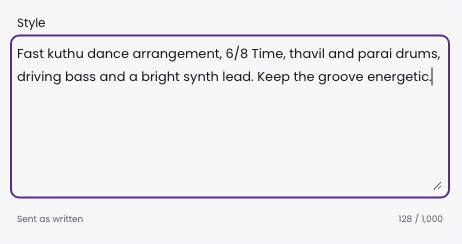
A fast kuthu direction
Fast kuthu dance arrangement, 6/8 Time, thavil and parai drums, driving bass and a bright synth lead. Keep the groove energetic.
A club version
128 BPM house arrangement, four-on-the-floor kick, tight percussion, warm bass and short piano chords. Build into a fuller chorus.
A stripped-back version
Intimate acoustic arrangement, fingerpicked guitar, soft percussion and warm bass. Keep the verses sparse and lift the chorus gently.
These are starting points, not tested presets. Match the description to your song. If you know its tempo, include it; if you want its original shuffle, say so. A tempo written in a prompt is a request, not a locked tempo setting.
For Tamil songs, check the detected words especially carefully. Tamil singing is not officially supported in Beat Studio yet, so pronunciation can come out unclear.
What changes—and what should you check?
Remix is designed to use the source song’s melody and lyrics as a basis for a new arrangement. The result is generated audio. Do not expect an untouched original vocal laid over a new backing track.
- Words: check names, repeated lines and pronunciation.
- Melody: check the hook and the ends of phrases.
- Groove: check whether the new version follows your intended tempo and feel.
- Sound: listen for rough transitions or audible artefacts before developing the track further.
Change the brief when a musical direction misses the point. Each new remix is another paid action, so check the previous result before spending credits again.
Need to keep the exact original vocal performance? Work from permitted stems and arrange the new backing in your DAW. StemSep can help separate a mixed recording; separation quality depends on the source. Our track-tempo guide shows the relevant steps in FL Studio, Ableton Live, Logic Pro and other music software.
Before you upload
- File rejected? Export a real MP3 or M4A under 10 MB. Renaming a WAV extension does not convert it.
- Song too long? Prepare a useful section between 10 seconds and 5:50. Keep your full original saved separately.
- No singing in the source? The current Remix flow is for vocal songs. For an instrumental source, use an appropriate creation/reference workflow instead.
- Want a version without singing? After selecting a suitable vocal song for Remix, turn on Instrumental. The source still needs to meet Remix’s input requirements.
- Lyrics missing or wrong? Paste or correct them. Automatic detection is a convenience, not a transcription guarantee.
A file rejected by Suno is not guaranteed to work in Beat Studio. Beat Studio has its own file requirements and processing limits; it does not clear another service’s rejection.
Looking for a “Suno copyright bypass”?
If it is your own song or you have the necessary permission, your practical options are to ask Suno to review the block or try another supported remix workflow, such as Beat Studio. You do not need to disguise your file to follow the steps in this guide.
If it is someone else’s film song, label release or recording, a successful upload does not give you permission to remix or publish it. Changing the arrangement does not automatically remove claims on YouTube or other platforms. Check the permissions for the song, recording and intended release before publishing.
The reason to use Beat Studio is straightforward: bring a song you can use, describe a new direction and explore a different arrangement.
By SpinZ CZ, the maker of Beat Studio. Prepared with AI assistance. Beat Studio’s live controls and upload validation, and the linked Suno documentation, were checked on 8 October 2026. This is a workflow comparison, not a side-by-side audio-quality test. Screenshots show the real interfaces; the Style text is an example, not a demonstrated output. Suggest a correction.

Comments
A question or something to add?
Sign in to comment