
FL Studio
- Set the project BPM to your song’s BPM. For the song clip, right-click the Time knob under Time stretching → Reset so it keeps its original speed.
- Double-click the beat or other track. Under Time stretching, set Mode → Stretch to keep its pitch.
- Open that clip’s waveform menu → Fit to tempo → Type in BPM. Enter that clip’s original BPM, not the song’s BPM.
- Move the clip so its first beat lands on the song’s first beat. Play them together and check again further into the song.
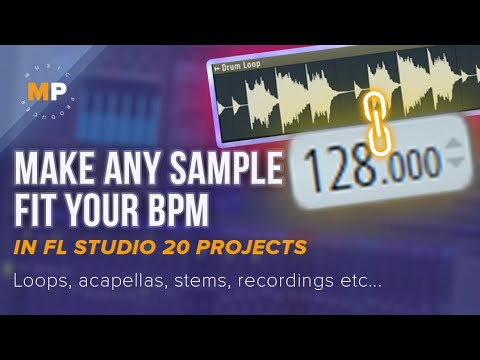
Music Pervs / Paul Wallen · Open on YouTube ↗FL Studio 20 interface
Ableton Live
- Set the project BPM to the song’s BPM. Double-click the song clip and turn Warp off.
- Double-click the other track and turn Warp on. Find its first beat, right-click it → Set 1.1.1 Here.
- Right-click that marker → Warp From Here. Check the detected Seg. BPM against the recording’s original BPM.
- Choose Beats for a drum loop or Complex / Complex Pro for a whole song.
- Move the clip’s first beat onto the song’s first beat. Play both; if a later beat misses the grid, correct that beat with a Warp Marker.
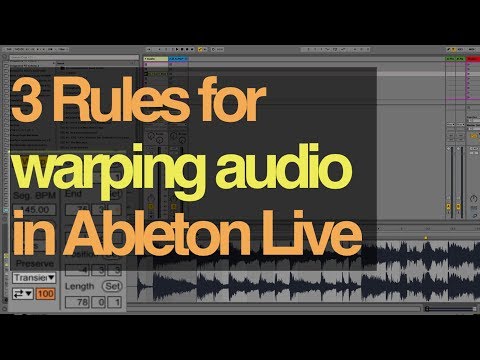
Beat Academy · Open on YouTube ↗Earlier Live interface
Logic Pro
- Set the project BPM to the song’s BPM. Choose Keep in the Smart Tempo menu; leave Flex & Follow off on the song region.
- Double-click the other audio region → Smart Tempo. Check its detected BPM and first beat; use Edit → Analyze Tempo if needed.
- Right-click that region in the Tracks area → Tempo → Apply Project Tempo to Region and Downbeat.
- Move the region to the song’s matching first beat. Play both and check a later section too.
Chris Sangster · Open on YouTube ↗Logic Pro for Mac
REAPER
- Set the project BPM to your song’s BPM before importing. Import the song at its original speed: choose Do not stretch media if asked.
- Drag the beat or other recording onto a separate track. REAPER can read its original BPM from tempo metadata or a BPM-labelled filename.
- In the import dialog, choose Stretch media to project tempo → OK.
- Move its first beat onto the song’s first beat. Play both and check a later section.
No tempo prompt, or the file is already imported?
Select only the recording you want to change → F2. Turn on Preserve pitch when changing rate. Set Playback rate to song BPM ÷ recording BPM. For 160 BPM audio in a 128 BPM song, enter 0.8, click Apply, then align its first beat.
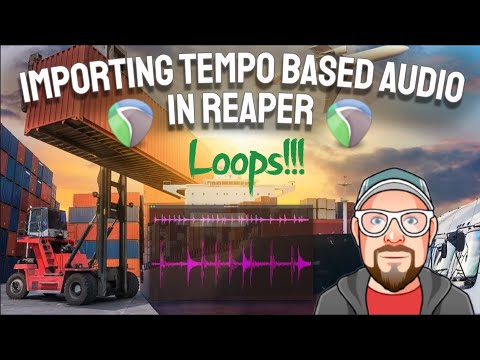
REAPER Mania / Kenny Gioia · Open on YouTube ↗REAPER 7 interface
Cubase
- Set the project BPM to the song’s BPM. Keep Musical Mode off for the song.
- Double-click the other recording to open the Sample Editor. Set its Tempo to the recording’s original BPM. For a neatly cut loop, entering its correct bars and beats also calculates this.
- Turn on Musical Mode for that recording. It now follows the project tempo.
- Move its first beat onto the song’s first beat. Play both and check a later section.
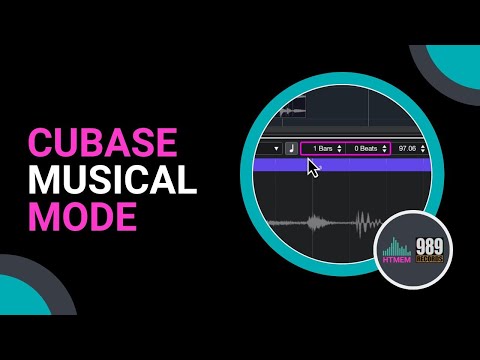
How to Make Electronic Music · Open on YouTube ↗Video demonstrates a loop
Studio One / Studio Pro
- Select the song track → Inspector → Tempo → Don’t Follow. Set the session tempo to the song’s BPM.
- Select the other audio event. In the Inspector, enter its original BPM in File Tempo.
- For that track, set Tempo → Timestretch. Choose Drums for a drum loop or Sound for a mixed recording.
- Move its first beat onto the song’s first beat. Play both and check a later section.
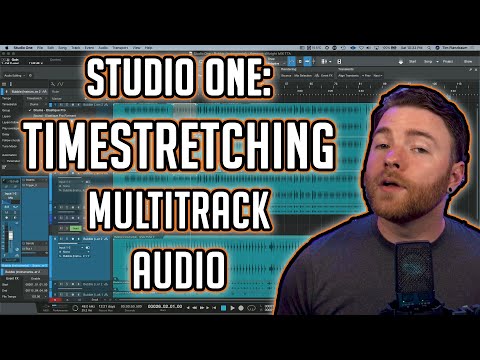
Tim Talks Audio · Open on YouTube ↗Video uses the older Studio One interface