
Windows
Windows 10 or 11, 64-bit. A 64-bit DAW that supports VST3 is required to use the plug-ins.
Download for Windows
SpinZ Access is a free app for Windows and Mac. Sign in with your SpinZ CZ email or Google account. Then install your plug-ins and sample packs.
Free download. Beta version. See what your computer needs
On a phone? Access runs on Windows and Mac. Open this page on your computer.
Buy one plug-in, a full set or a sample pack on SpinZ CZ. Access puts them in one library. One-time purchases need no membership.
Use the account you used at checkout. Your purchases show up in My library.
Choose Install beside a product, or install your whole collection at once. Plug-in activation is done for you.
Open the plug-in in your DAW, the music software you make tracks in. For a sample pack, choose Open folder to get to your sounds.
Access keeps your purchases, what is installed and new updates together.
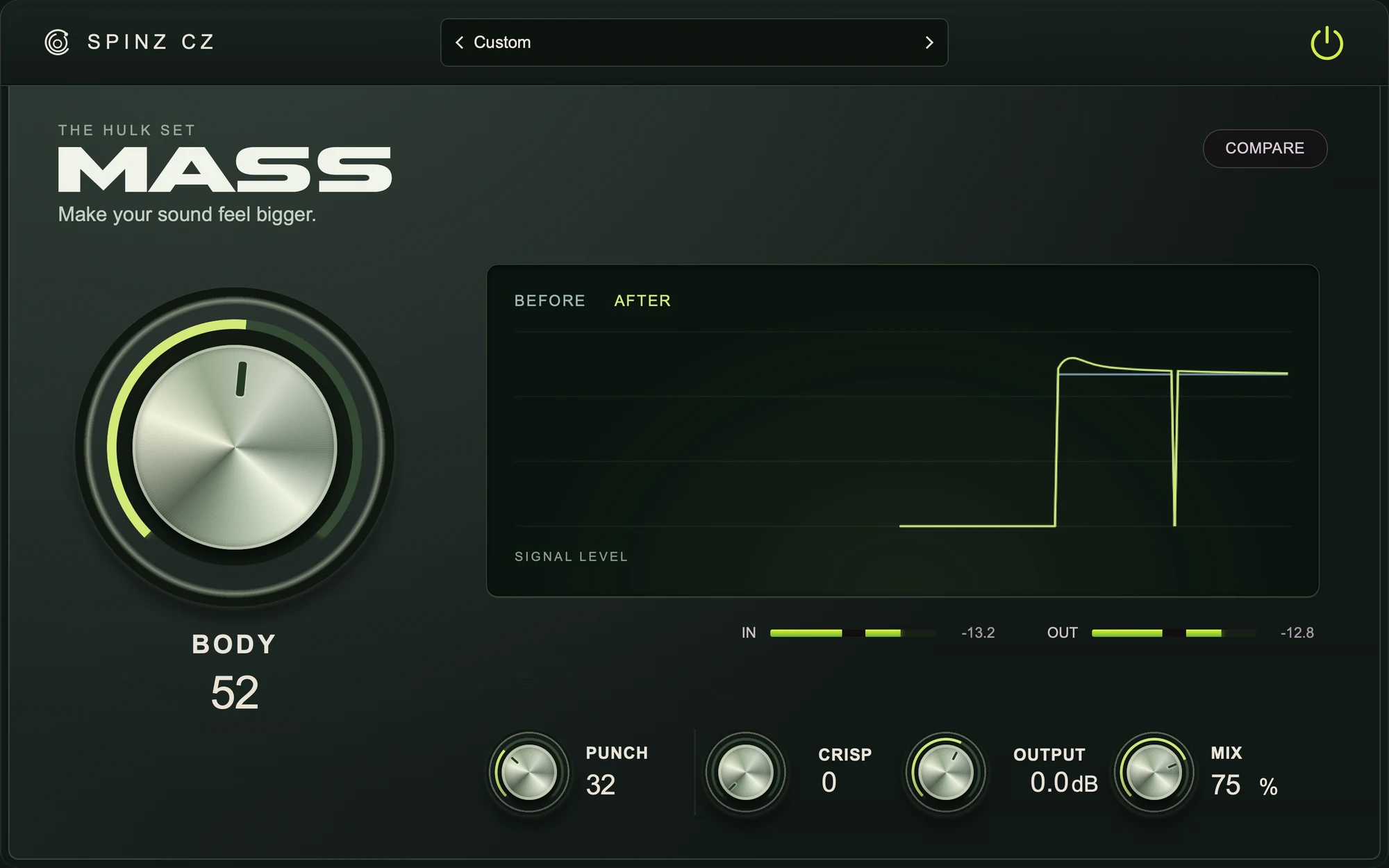 MASSPlug-in
 South of KuthuSample pack
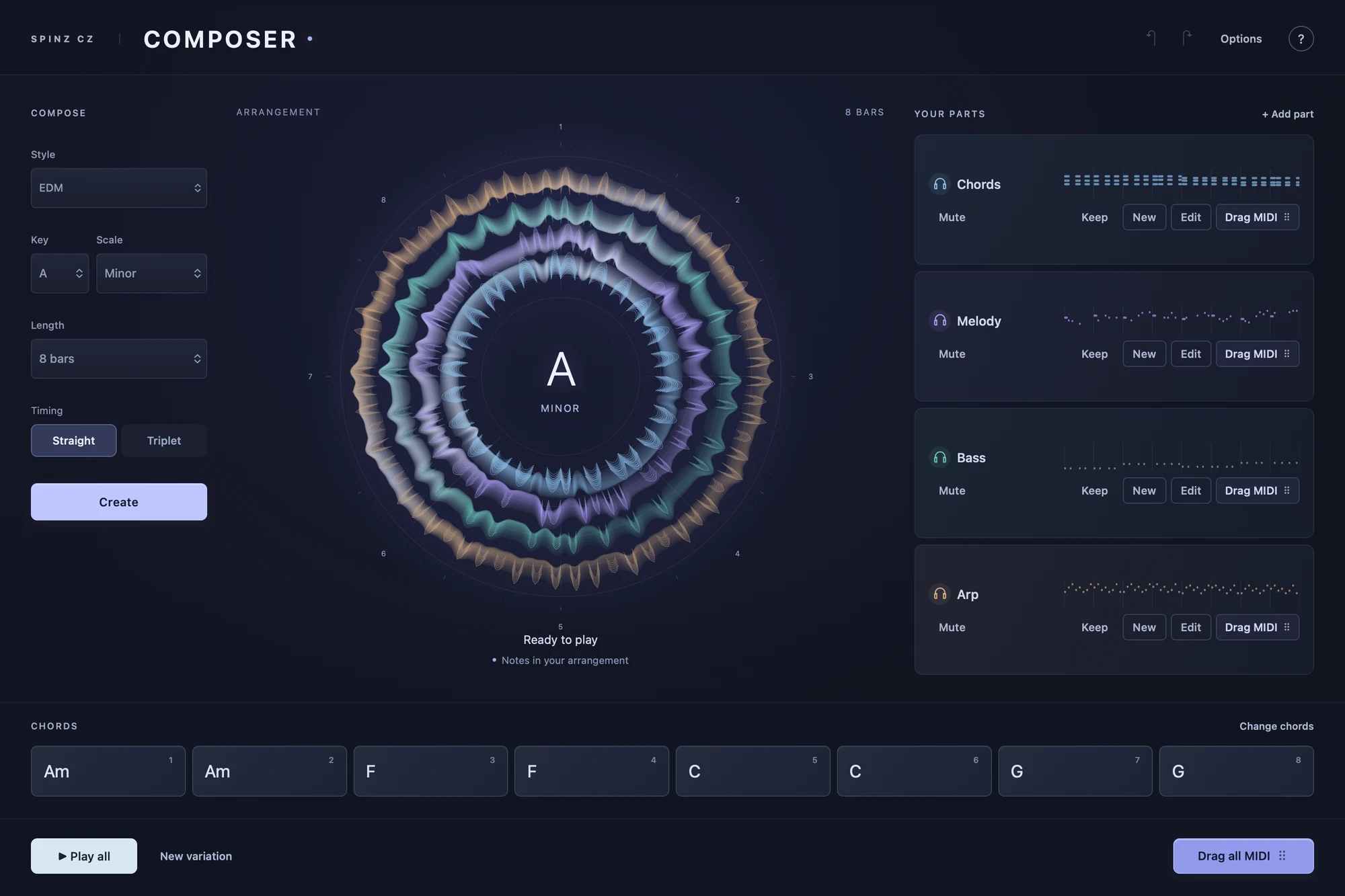 ComposerPlug-in
 Tapori LoopsSample pack
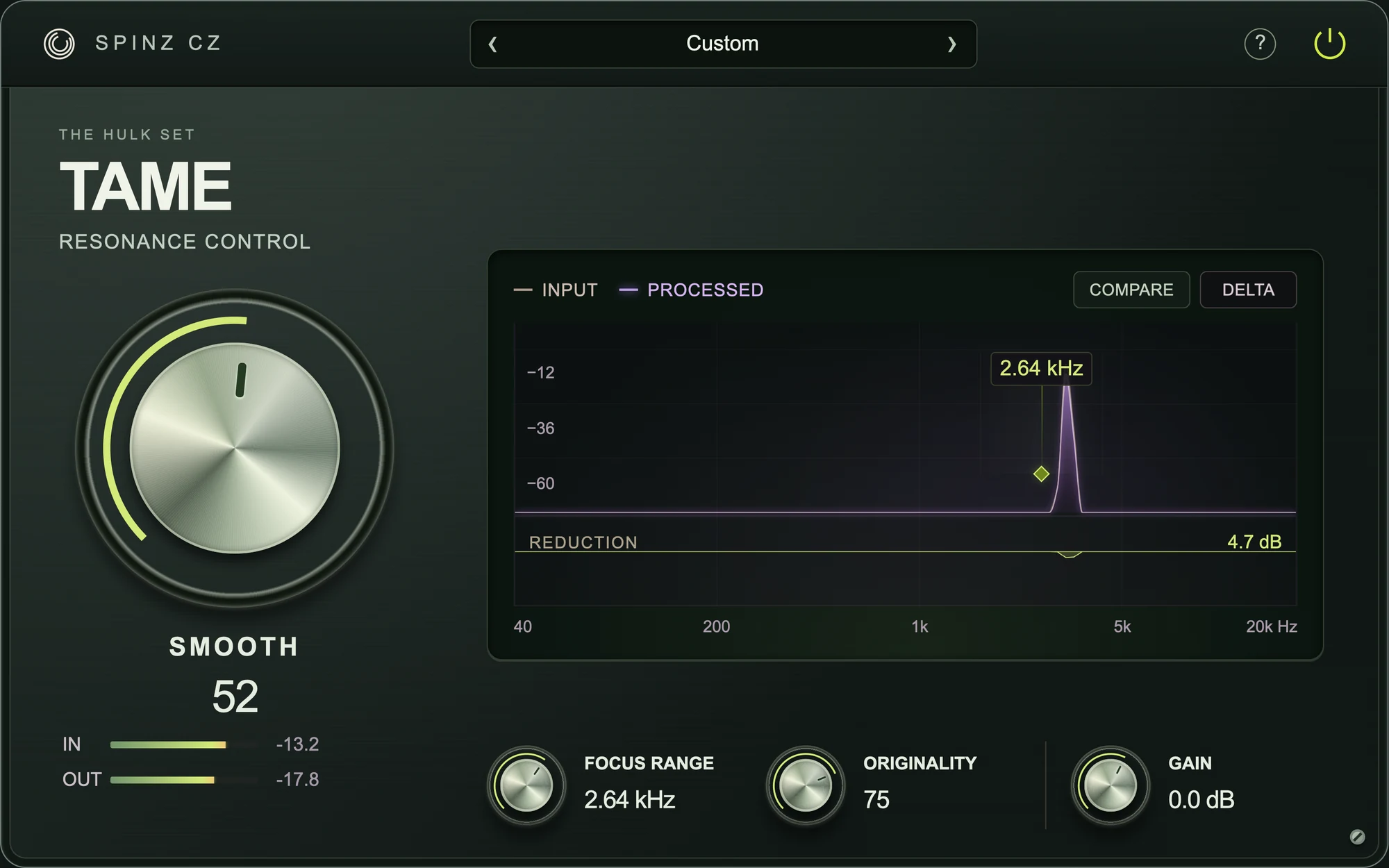 TAMEPlug-in
 Drop Vocal V1Sample pack
Search your library, filter by collection and see what is already installed.
Pick where things install in Settings. Open a sample pack’s folder from its product page.
New product updates show up in Access. Install them when you are ready.
See your activated devices. Deactivate a computer you no longer use.
If a download or an installation needs attention, Access can check and repair its files.
The website and Access use the same sign-in. You do not need to buy a product again.
Windows 10 or 11, 64-bit. A 64-bit DAW that supports VST3 is required to use the plug-ins.
Download for WindowsmacOS 13 or later for the plug-ins, on Apple Silicon or Intel. Use a DAW that supports Audio Units or VST3.
Download for MacYou need internet to sign in, download, install and refresh your licences. Space needed varies by product. Access shows each download before you install.
Download Access from this page and open the installer. Sign in with the account you used to buy. In My library, choose Install beside a purchased product. Then restart your DAW or rescan its plug-ins.
This beta may trigger a Windows or macOS security warning because the app’s publisher verification is still being completed. Some managed computers may block it. Check that your download came from spinzcz.com, and contact us if it cannot open. Do not turn off your computer’s security protection.
Not sure it will open on your computer? Install Access before you buy. Get installation help on WhatsApp
Yes. The app is free to download. Buy the plug-ins or packs you want on our website, then install them with Access.
No. A plug-in, a bundle or a sample pack you buy once is yours to install. It does not need a membership.
Every plug-in in the bundle unlocks in your library. Install the ones you want, or install the whole collection at once.
No. Access installs and manages your products. You use the plug-ins and sample packs in your usual DAW.
No. Beat Studio, Sample Gen, Mastering and the other online tools run in your browser.
Check that the email in Access matches the account you used at checkout, then refresh your library. If your payment is confirmed but the product is missing, message us on WhatsApp with your order number. Do not buy it again.
Download Access and sign in with your SpinZ CZ account. Your purchases are also listed in My Account.
Go to My Account