
Getting started
Make your first
sound with CLEAR.
Reduce lingering room sound to bring a recorded voice closer.
Install through Access.
- Download SpinZ Access for your computer and sign in with the account you used to buy.
- Open My library, find CLEAR and choose Install. A bundle purchase unlocks its included plug-ins individually.
- Restart your DAW or rescan its plug-ins. Find CLEAR under SpinZ CZ and load it on the audio track or bus you want to process.
Activation is handled through Access. You do not need to copy a serial key. Computer requirements and installation help.
Your first session.
- Insert CLEAR on a recording with unwanted room sound.
- Play a section that contains the voice or instrument you want to keep.
- Raise Clean gradually and stop before the useful sound loses its character. Compare with the original.
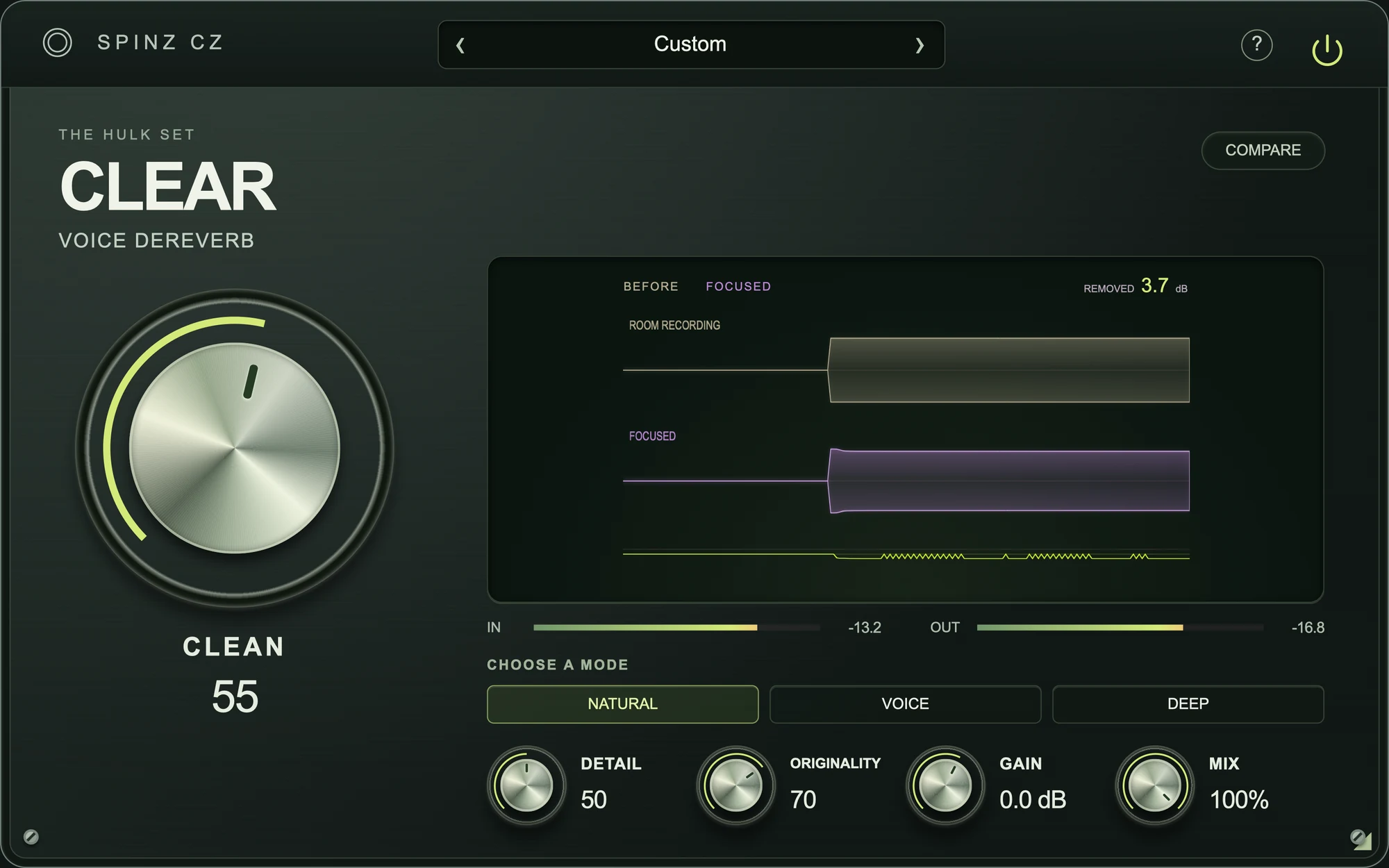
Keep these controls close.
- Reduce room tails with an adaptive dereverberation process.
- Balance the treatment with Detail, Originality and Mix.
- Compare with the original as you work; results depend on the recording and room.
If something gets in the way.
My purchase is missing in Access.
Check that the email in Access matches the account used at checkout. Refresh the library after payment is confirmed. If it is still missing, contact support with your order number. Do not buy it again.
I cannot find the plug-in in my DAW.
Confirm that Access shows Installed. Close and reopen the DAW, then rescan its plug-ins. Windows uses VST3; Mac supports AU and VST3. Check the installed location in Access if your DAW needs its scan folder updated.
How do I get updates or move computers?
Open Access to check available updates and manage your activated devices. Install Access and sign in with the same account on your other computer. Your purchases stay with your account.